Sunday, 21 August 2016

JavaScript String Object

JavaScript String Object
It is a built-in or standard object in javascript.
JavaScript support different built in object.
1.  String
2.  RegExp
3.  Boolean
4.  Number
5.  Array
6.  Math
7.  Date
The String Object
A string is a sequence of characters. All strings are represented as an instances of the string object. It is used to perform operation on stored text. String object is wrapper class and a member of the global objects.
Properties of string object
Property
Description
constructor
Returns the function which creates the prototype of a string object
Length
Returns the length of a string
prototype
Adds properties and methods to an object

Methods of the String Object
Method
Description
charAt()
Returns the character in the specified index
charCodeAt()
Returns the Unicode equivalence of the character in the specified index
concat()
Joins two strings and returns the joint string
fromCharCode()
Coverts the Unicode to character
indexof()
Returns the position of the first occurrence of the specified character in a string
lastindexof()
Returns the position of the last occurrence of the specified character in a string
match()
Looks for the match between a regular expression and a string and returns the matches
quote()
Writes quotes in javaScript
replace()
Searches for the match between a regular expression and a string, and replace the match substring with a new substring.
search()
Searches for the match between a regular expression and a string and returns the position of the match
slice()
Returns a part of a string as new string
substr()
Splits a string into substrings
substring()
Returns characters in a string between two specified indices
toLowerCase()
Converts a string into lowercase
toUpperCase()
Converts a string into uppercase
toSource()
Returns an object literal representing the specified object
toString()
Returns a string representing the specified object
valueOf()
Returns the primitive value of a string object.


Wrapper methods that returns a string object
Method
Description
anchor()
Creates an anchor
big()
Shows string with a big font
blink()
Makes the string to blink
bold()
Makes the string bold
fixed()
Displays the string using fixed pitch font, such as courier new or book antique
fontcolor()
Shows string with specified color
fontsize()
Shows string with specified size
italics()
Shows the string in italics
link()
Shows the string as a hyperlink
small()
Shows a string with small font
strike()
Shows the string with the struck out text
sub()
Shows the string as a subscript text
sup()
Shows the string as a superscript text


Example
<!DOCTYPE html>
<html>
<head>
    <title>JavaScript String Objects</title>
</head>
<body>
    <h1>JavaScript String Objects</h1>
    <script>
        var var_string = 'Once upon a time';
        document.write('string: ' + var_string + '<br/>');
        document.write('lenght: ' + var_string.length + '<br/>');
        document.write('uppercase: ' + var_string.toUpperCase() + '<br/>');
        document.write('lowercase: ' + var_string.toLowerCase() + '<br/>');
        document.write('strike text: ' + var_string.strike() + '<br/>');
        document.write('bold text: ' + var_string.bold() + '<br/>');
        document.write('big text: ' + var_string.big() + '<br/>');
        document.write('small text: ' + var_string.small() + '<br/>');
        document.write('blinking text: ' + var_string.blink() + '<br/>');
        document.write('substring after 5 character: ' + var_string.substring(5) + '<br/>');
        document.write('character at 5 position ' + var_string.charAt(5) + '<br/>');
        document.write('Index of text: ' + var_string.indexOf('upon') + '<br/>');
        document.write('splitted text: ' + var_string.split('upon') + '<br/>');
    </script>
</body>
</html>


JavaScript Objects

JavaScript Objects
JavaScript is an object based language.

Object can be created in two ways
1.       Creating a direct instance
2.       Creating an object using a functional template


Creating a direct instance
Direct instance of an object is created by using a new keyword.
  Obj = new object();
Properties and method are added to object using period (.)
Obj.name =”Adam”;
Obj.job =”Software engineer”;
Obj.getSalary();

Creating an object using functional template
Instance of an object is created by creating a functional template of an object. After creating the functional template, we need to create the instance of the functional template by using the new keyword. A functional template of an object is created by using function keyword. Properties can be added to the function template by using the this keyword.
function employee(name, designation, salary)
{
this. name =name;
this.designation =designation;
this.salary =salary;
}
Now, creating an instance of the employee object
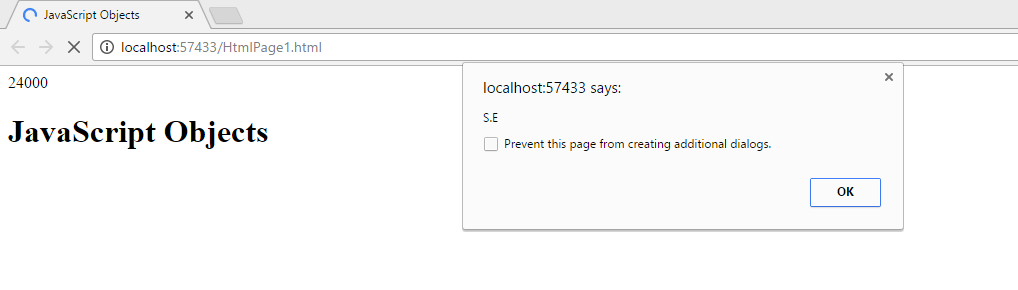
var team_employee= new employee(“adam”,”S.E”,24000);
Accessing the team_employee instance of the employee object.
var employee_designation= team_employee.designation;

Properties/attributes of an object
Also known as the characteristics of an object. Properties of an object can be added using the this keyword followed by the period (.).
Example:
<!DOCTYPE html>
<html>
<head>
    <title>JavaScript Objects</title>
    <script>
        function employee(name, designation) {
            this.name = name;
            this.designation = designation;
            this.salary = 24000;
        }
        var employee_object = new employee('Adam', 'S.E');
        alert(employee_object.designation);
        document.write(employee_object.salary);
    </script>
</head>
<body>
    <h1>JavaScript Objects</h1>
</body>
</html>
Methods of an object
Method is a collection of statement that are executed when called by its name.
Adding a method to a user defined object.
  1.     .   Declaring and defining a function for each method
  2.         Associating a function with an object

Example
<!DOCTYPE html>
<html>
<head>
    <title>JavaScript Objects</title>
    <script>
        function computearea() {
            var area = this.base * this.altitude * 0.5;
            return area;
        }
        function triangle(b, a) {
            this.base = b;
            this.altitude = a;
            this.area = computearea;
        }
        var triangle_object = new triangle(10, 20);
        alert("area= " + triangle_object.area());
    </script>
</head>
<body>
    <h1>JavaScript Objects</h1>
</body>
</html>

JavaScript browser and media element events

HTML browser events


Event
Description
onafterprint
Fired after printing a document
onbeforeprint
Fired before printing a document
onbeforeonload
Fired before loading a document
Onblur
Fired when a window loses focus
onerror
Fired when an error occurs
onfocus
Fired when a window gets focus
onhaschange
Fired at the time of changing a document
onload
Fired at the time of loading a document
onmessage
Fired when the postMessage() method sends a message to the current document
onoffline
Fired when a document goes offline
ononline
Fired when a document gets online
onpagehide
Fired when a window is hidden
onpageshow
Fired when a window is visible
onpopstate
Fired when the history of a window changes
Onredo
Fired at the time of performing the redo action in the document
onresize
Fired at the time of resizing a window
onstorage
Fired when a document loads
onundo
Fired at the time of performing undo action in a document
onunload
Fired at the time of leaving a document

Example 1: onload event

<!DOCTYPE html>
<html>
<head>
    <title>onload Event</title>
    <script>
        function onload_event() {
            alert('display of alert box on page load');
        }
    </script>
</head>
<body onload="onload_event();">
    <h1>onload Event</h1>
</body>
</html>


HTML media element events

Event
Description
onabort
Fired on aborting a process
oncanplay
Fired when an audio or video file starts, but might has to stop for buffering
oncanplaythrough
Fired when an audio or video file is played to the end without buffering
ondurationchange
Fired on changing the length of the audio or video file
onemptied
Fired when a media element becomes empty due to some errors
onended
Fired when the media files end
onerror
Fired when an error occurs on loading an element
onloadeddata
Fired on loading the media file
onloadedmetadata
Fired on loading a media data, such as duration and size
onloadstart
Fired when a browser starts loading the media file
onpause
Fired on pausing the media file
Onplay
Fired when a media file is going to play
onplaying
Fired when media file plays
onprogress
Fired when a web browser retrieves the data of a media file
onratechange
Fired when the rate of playing the media file has changed
onreadystatechange
Fired on changing the ready state of the media file
onseeked
Fired when the seeking is completed. Seeking means moving media forward or backward
onseeking
Fired when the seeking process begin
onstalled
Fired when an error occurs while retrieving the media data
onsuspended
Fired when data retrieved is interrupted or suspended
ontimeupdate
Fired on changing the playing position of the media file
onvolumechange
Fired on changing the volume
onwaiting
Fired when the media file has stopped, but is expected to resume later

JavaScript keyboard and mouse events

HTML keyboard events

Event
Description
onkeydown
Fired on pressing a key
onkeypress
Fired when a key is pressed
onkeyup
Fired on releasing a key


HTML mouse events

Event
Description
Onclick
Fired on clicking the mouse button
ondblclick
Fired on double clicking the mouse button
ondrag
Fired on dragging an element
ondragend
Fired on ending the drag operation
ondragenter
Fired on dropping the dragged element on a valid target
ondragleave
Fired on leaving the valid target while dragging an element
ondragover
Fired on dragging the element over the valid drop target
ondragstart
Fired on starting the drag operation
ondrop
Fired on dropping the dragged element
onmousedown
Fired on pressing the mouse button
onmousemove
Fired on moving the mouse pointer
onmouseout
Fired when the mouse pointer leaves an element
onmouseover
Fired when the mouse pointer moves over an element
onmouseup
Fired on releasing the mouse button
onmousewheel
Fired on rotating the mouse wheel
onscroll
Fired on scrolling the scroll bar of an element

Example 1: onclick event

<!DOCTYPE html>
<html>
<head>
    <title>onclick Event</title>
</head>
<body>
    <h1>onclick Event</h1>
    <form name="event">
        Favorite Movie : <input type="text" id="movie" /><br />
        <button onclick="alert('Your favorite movie ' + document.getElementById('movie').value)">Click here</button>
    </form>
</body>
</html>

Or

<!DOCTYPE html>
<html>
<head>
    <title>onclick Event</title>
    <script>
        function btn_onclick() {
            alert('Your favorite movie ' + document.getElementById('movie').value);
        }
    </script>
</head>
<body>
    <h1>onclick Event</h1>
    <form name="event">
        Favorite Movie : <input type="text" id="movie" /><br />
        <button onclick="btn_onclick();">Click here</button>
    </form>
</body>
</html>


 Example 2 : onmousedown event
<!DOCTYPE html>
<html>
<head>
    <title>onmousedown Event</title>
    <script>
        function onmousedown_event() {
            alert('Your favorite movie ' + document.getElementById('movie').value);
        }
    </script>
</head>
<body>
    <h1>onmousedown Event</h1>
    <form name="event">
        Favorite Movie : <input type="text" id="movie" /><br />
        <button onmousedown="onmousedown_event();">Click here</button>
    </form>
</body>
</html>


JavaScript form events

Events occurs when user perform some action. Such as on click of a button, certain piece of code will be executed, which is defined in the onclick function of the button.

HTML form events
Event
Description
onsubmit
Fired on submitting a form
onselect
Fired on selecting an element
oninvalid
Fired when an element is invalid
oninput
Fired when input is provided for an element
onforminput
Fired when input is provided on a form
onformchange
Fired when a form change
onfocus
Fired when a window gets focus
oncontextmenu
Fired when the context menu is used
onchange
Fired when an element is changed
onblur
Fired when a window loses focus
onreset
Fired when the fields of form is reset


Example 1 : onreset event

<!DOCTYPE html>
<html>
<head>
    <title>onreset Event</title>
    <script>
        function onreset_event() {
            alert('onreset event is fired when user clicks the reset button');
        }
    </script>
</head>
<body>
    <h1>onreset Event</h1>
    <form name="event" onreset="onreset_event();">
        Favorite Movie : <input type="text" id="movie" /><br />
        <button onmousedown="onmousedown_event();">Click here</button> &nbsp;&nbsp;
        <input type="reset" value="Reset" />
    </form>
</body>
</html>


Example 2: onsubmit event

<!DOCTYPE html>
<html>
<head>
    <title>onreset Event</title>
    <script>
        function onreset_event() {
            alert('onreset event is fired when user clicks the reset button');
        }
        function onsubmit_event() {
            alert('all details has been submitted');
        }
    </script>
</head>
<body>
    <h1>onsubmit Event</h1>
    <form name="event" onreset="onreset_event();" onsubmit="onsubmit_event();">
        Favorite Movie : <input type="text" id="movie" /><br />
        <input type="submit" value="Submit" />
        <input type="reset" value="Reset" />
    </form>
</body>
</html>